
SIX Game Troubleshooting Guide: Fix Installation and Login Problems
8MB
V1.19
300K
Description
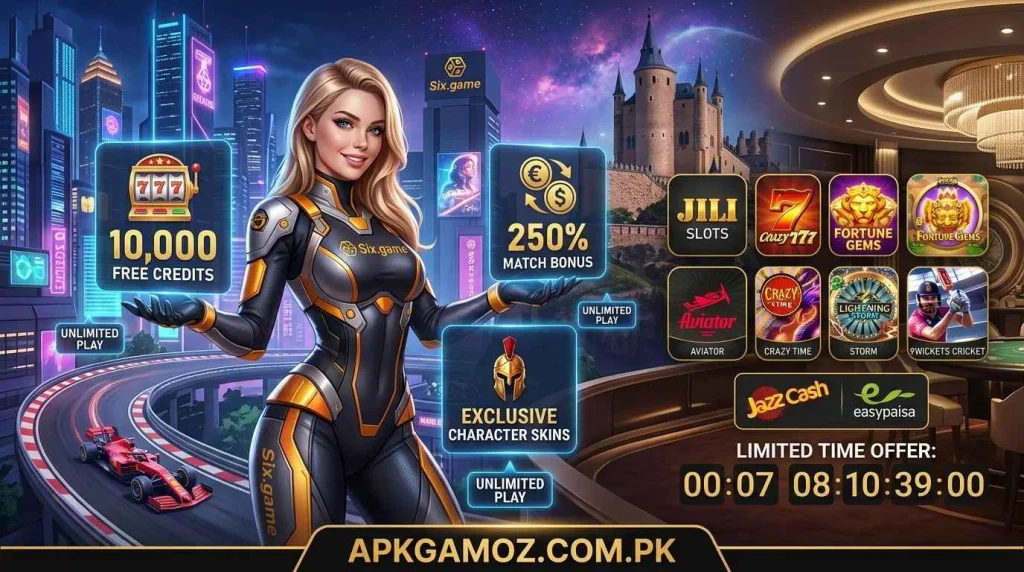
Trying to install SIX game on an Android phone should not become a long technical process. Yet APK installation can sometimes fail because of blocked permissions, an incomplete file, Android security settings, or a login problem after installation.
If you are dealing with SIX game for the first time, the useful approach is to identify the exact problem before changing several settings at once. This guide covers the most common installation and login issues and explains what you can check without guessing at unsupported requirements.
SIX Game APK Will Not Install
One of the first problems Android users may face is an installation message saying that the app cannot be installed. This can happen for several reasons.
Start by checking the APK source. Only use an official or trusted source that you can verify. Avoid random websites offering modified versions, because an APK from an unknown source can create security and privacy risks.
Next, check whether the download completed properly. An interrupted or damaged APK may look like a normal file but still fail during installation.
If the file appears incomplete, delete it and obtain a fresh copy from a trusted source rather than repeatedly trying to install the same file.
Check Android’s Installation Permission
Android can block APK installation when the browser or file manager does not have permission to install apps from that source.
Depending on your Android version, you may find this under:
Settings → Security/Privacy → Install unknown apps
Choose the app you used to open the APK, such as your browser or file manager, and check whether installation permission is enabled.
Only allow this permission when you understand where the APK came from. After installing the app, you can disable the permission again.
Android Blocks the SIX APK
Sometimes Android shows a security warning before installation. Do not treat every warning as something that should simply be bypassed.
Android may warn you because the APK was downloaded outside the Play Store or because the source cannot be fully trusted.
Before continuing, check:
- Where the APK came from
- Whether the website is an official or trusted source
- Whether the file name looks normal
- Whether the download finished completely
- What permissions the app requests
- Whether the APK has been modified
If you cannot verify the source, it is safer not to install the file.
A modified APK can create additional risks that are not present in the original application. Avoid APKs advertised with claims such as guaranteed rewards, unlimited balances, or special versions that sound too good to be true.
SIX apk Installs but Will Not Open
An app can sometimes install correctly and then close immediately or remain stuck on the loading screen.
First, restart your phone and try opening the app again. If the problem remains, check whether your phone has enough free storage.
You can also clear the app cache through Android settings. The exact menu differs between Android versions, but it is usually available under:
Settings → Apps → SIX apk → Storage
Use Clear Cache first. Avoid clearing app data unless you understand that doing so may remove locally stored login information or settings.
If the app still refuses to open, uninstalling and reinstalling it from a trusted source may help. Do not repeatedly install different APK versions from unknown websites because this makes it harder to identify the real cause.
SIX Game Login Is Not Working
A successful installation does not always mean the login process will work immediately.
If your SIX apklogin fails, first check the basics. Make sure the username, phone number, email address, or other login details are entered exactly as required by the service.
Pay attention to:
- Extra spaces
- Incorrect capitalization
- Wrong password
- Incorrect account details
- Poor internet connection
- Temporary service problems
If the platform provides a password-reset option, use the official recovery process instead of creating several new accounts.
Login Page Keeps Loading
A login screen that keeps loading can sometimes be caused by an unstable connection.
Try switching between Wi-Fi and mobile data. If one connection works while the other does not, the issue may be related to the network rather than the app itself.
You can also close the application completely and reopen it.
If other websites and apps work normally but the SIX game login remains unavailable, the problem may be on the service side. In that situation, repeatedly changing your phone settings is unlikely to help.
What to Do When SIX Game Shows a Blank Screen
A blank screen can be frustrating because it gives you little information about what went wrong.
Start with the simple checks:
- Close SIX game completely.
- Check your internet connection.
- Restart the phone.
- Open the app again.
- Clear the app cache if necessary.
- Check whether an official update is available.
Avoid downloading another APK immediately. If the original installation is intact, replacing it may introduce another variable without solving the actual problem.
SIX Game APK Downloaded but the File Cannot Be Found
Sometimes users download an APK but cannot locate it afterward.
Open your phone’s Files or File Manager application and check the Downloads folder. If you used a browser, its download history may also show the file location.
Before opening the APK, check the file carefully. If the file has an unusual name or extension, do not assume that it is the correct SIX game package.
A trustworthy source should clearly identify what you are downloading. Many users also try 67uu game as they both have almost same gaming interface.
SIX Game Installation Fails After an Older Version Was Installed
An existing version of an app can sometimes interfere with a new APK installation.
If you already have SIX game installed, check whether the new file is actually intended to update that installation.
Do not uninstall the existing app immediately if you need information stored inside it. If you decide to remove it, understand that local app data may also be removed.
For account-based services, make sure you know your login details before uninstalling anything.
Check App Permissions Before Using SIX Game
After installation, review the permissions requested by the application.
Permissions should make sense for the functions the app provides. If an app asks for access that seems unrelated to its normal operation, stop and consider whether you trust the source.
You can normally review permissions through:
Settings → Apps → SIX game → Permissions
Android menu names can vary between phones.
Do not grant permissions automatically just because an app requests them. Understanding what an application can access is an important part of mobile security.
A Simple SIX Game Troubleshooting Checklist
If you want to work through the problem quickly, use this order:
| Problem | First thing to check |
|---|---|
| APK will not install | File source, download integrity, and installation permission |
| Android blocks installation | Security warning and APK source |
| App will not open | Restart phone, storage, and cache |
| Login fails | Account details and internet connection |
| Login keeps loading | Try another network |
| Blank screen | Restart, clear cache, and check for updates |
| APK cannot be found | Downloads folder or browser download history |
| Slow deposits and Withdraws | Use Jazzcash and Easypaisa |
This approach is better than changing several settings at once. If the problem disappears after one step, you have a clearer idea of what caused it.
Before Installing SIX Game, Take a Minute to Check
APK installation gives Android users more flexibility, but it also requires more care than installing an application from a trusted app store.
Before installing SIX game, check the source, download the correct file, review Android’s security warning, and avoid modified packages from unknown websites.
If SIX game involves real-money gaming, also remember that outcomes can involve chance and losses are possible. Never treat gaming as guaranteed income. Set a personal spending limit and check the laws that apply where you live before using real-money gaming services.
For users who experience a problem after installation, the safest troubleshooting method is to identify the exact error first. That makes it easier to decide whether the problem is related to the APK, Android settings, the internet connection, or the account.
FAQs About SIX Game Troubleshooting
Why won’t SIX game install on my Android phone?
The APK may be incomplete, blocked by Android security settings, or incompatible with your device. Check the file source and download integrity first, then review the installation permission for the browser or file manager you used.
What should I do if SIX game installs but I cannot log in?
Check your account details and internet connection first. If the login page continues loading, try another network and restart the app. If the service provides official account recovery, use that process rather than creating multiple accounts.
Is it safe to install a modified SIX game APK?
A modified APK from an unknown source can create security and privacy risks. Do not assume that an APK is safe simply because another website offers it. Use an official or trusted source whenever one is available and review the permissions before using the application.
Responsible Use
SIX game should be approached as entertainment, not as a guaranteed way to earn money. If real-money gaming is available, results can vary and users can lose money. Set personal limits and check applicable local laws and regulations before using such services.
Download links
How to install SIX Game Troubleshooting Guide: Fix Installation and Login Problems APK?
1. Tap the downloaded SIX Game Troubleshooting Guide: Fix Installation and Login Problems APK file.
2. Touch install.
3. Follow the steps on the screen.